

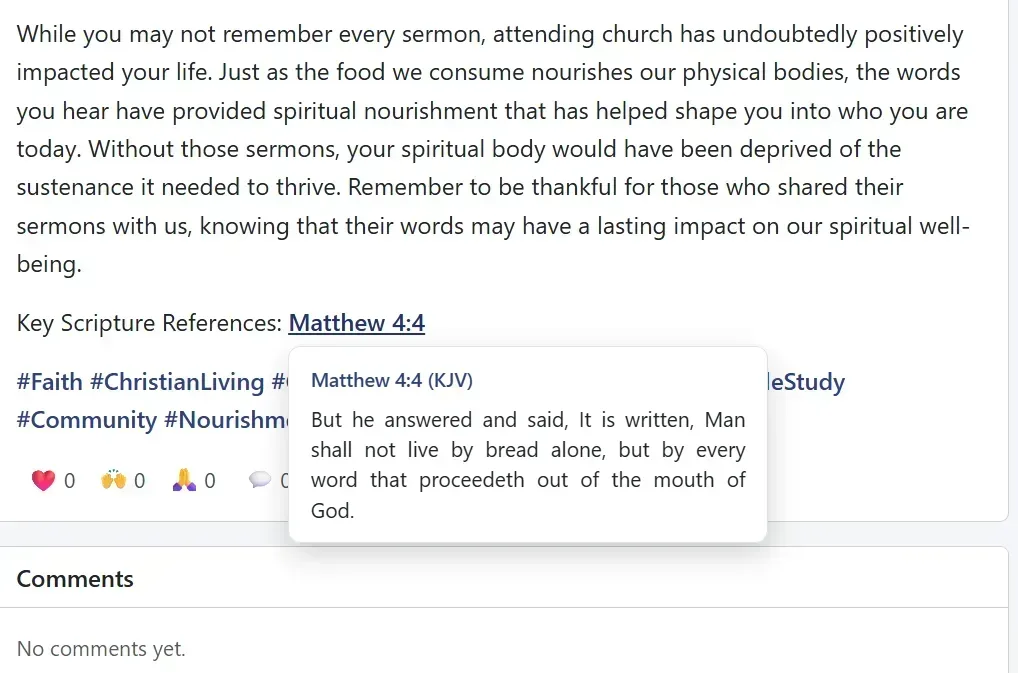
When you share a spark, leave a comment, or write a minister blog article, you can now point readers straight to the Bible by typing a verse reference in your text. Agape Social turns it into a link automatically.
This article explains how it works and how to add a verse in a few simple steps.
WHAT THIS FEATURE DOES
When you type a Bible reference inside square brackets, Agape Social checks the format. If it matches a real book, chapter, and verse in the King James Version, it becomes a clickable link. Readers can click the link to open that passage on the Bible page.
When someone moves the mouse over the link, a short preview appears below it with the verse text. The preview disappears when they move the mouse away. You do not need to do anything special for the preview; it works on its own.
This feature works in:
* Sparks on the Newsfeed and in Agape Groups
* Comments on sparks
* Comments on minister blog articles
* The body text of minister blog articles
It also works alongside @mentions and #hashtags in the same post.
HOW TO ADD A VERSE
1. Write your spark, comment, or blog article as you normally would.
2. Where you want the verse to appear, type an opening bracket [, then the book name, chapter, verse, and a closing bracket ].
3. Use this pattern: [Book Chapter:Verse] or [Book Chapter:Verse-Verse]
Examples:
* [John 3:16] shows as John 3:16
* [Acts 2:38] shows as Acts 2:38
* [1 Corinthians 13:4-7] shows as 1 Corinthians 13:4-7
* [Psalm 23:1-6] shows as Psalm 23:1-6
TIPS FOR GETTING IT RIGHT
* Type the full book name, the way it appears in the Bible, such as Proverbs, John, or 1 Corinthians.
* Use a colon between the chapter and verse, not a period.
* The brackets matter. Write [Proverbs 11:2] not Proverbs 11:2 without brackets.
* If the format is wrong or the book name is not recognized, the text stays plain; it will not become a link.
Questions or feedback? Leave a comment below or share a spark with Feedback. We are glad you are part of this fellowship.