
Agape Social now has in-app notifications.
This article shows you where to find them, what causes an alert, and how to manage your notifications.
WHERE TO FIND NOTIFICATIONS
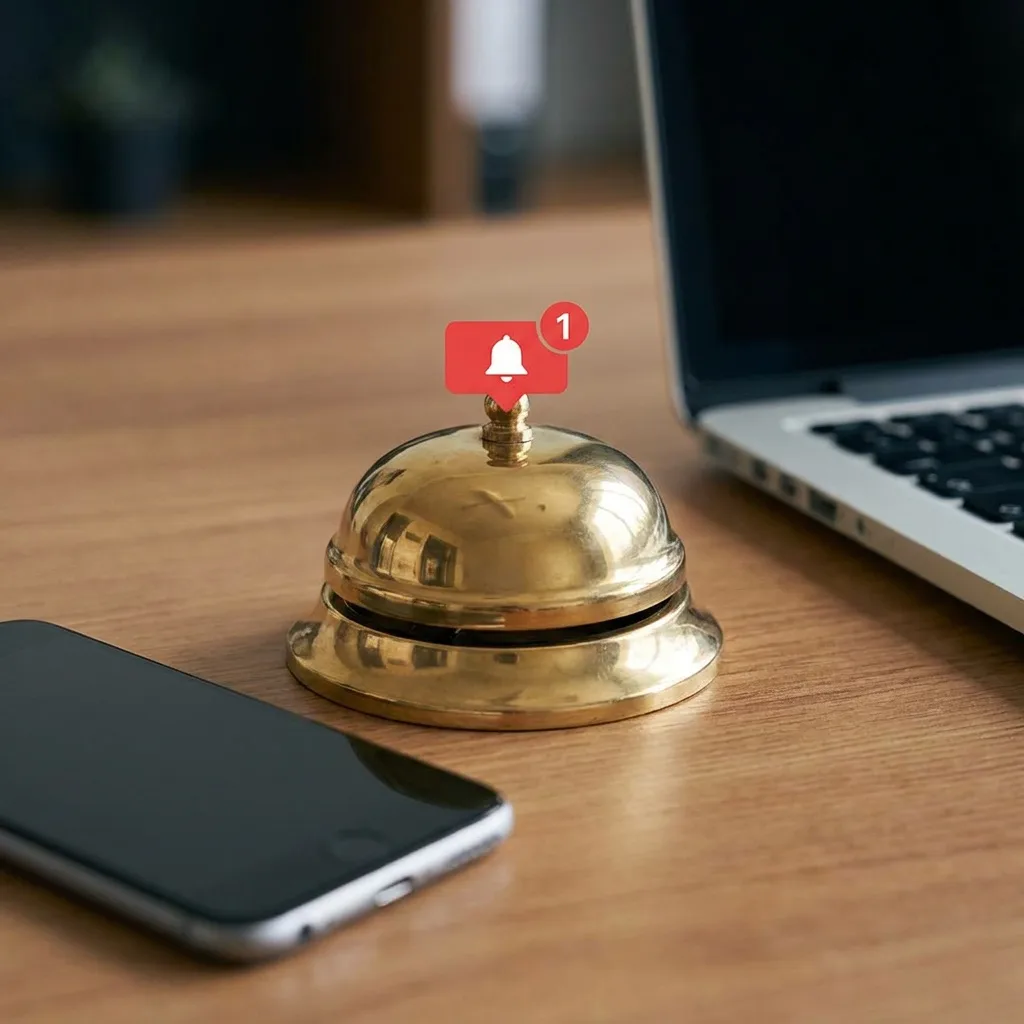
Look for the bell icon in the top navigation bar. If you have unread notifications, a small number badge appears on the bell. Click or tap the bell to open a short preview list of your most recent alerts.
For the full list, open the Notifications page from the bell menu. On mobile, the bell sits in the title row at the top of the screen. Notifications also appear as a link under Navigation in the sidebar.
Your notification badge updates every 30 seconds. You do not need to refresh the page. When something new arrives, a brief pop-up message may appear at the edge of the screen so you can notice it right away.
WHAT TRIGGERS A NOTIFICATION
Agape Social sends a notification when community activity involves you directly or when something you follow has new content:
* Mentions. When someone @mentions you in a spark or in a comment, you get a notification so you can respond.
* Comments on your sparks. When someone replies to something you shared, you are alerted.
* New articles from followed blogs. When you follow a minister's blog, you may be notified when a new article is published.
* New followers. When someone follows you on Agape Social, you receive a notice about the new connection.
* Report updates. If you submitted a report, you may be notified when moderation has finished reviewing it.
* New group sparks. When someone posts a new spark in a group you belong to.
HOW TO MANAGE YOUR NOTIFICATIONS
* Mark read. Open a notification or tap the check mark to mark one item as read. The badge count drops right away.
* Mark all read. Clear every unread item at once when you have caught up. The badge clears immediately.
* Delete. Remove individual notifications you no longer need.
* Clear all. Empty your entire notification list when you want a fresh start.
Questions or feedback? Leave a comment below.